Building a Paginated Editor with Accurate DOCX Export



Building a document editor for the web sounds straightforward until you need two features: real page breaks and accurate DOCX export. These features are deeply connected, and getting them right requires understanding why browsers and Microsoft Word see text completely differently.
Jump to live preview | View source on GitHub
The Challenge
Web browsers and Microsoft Word don't agree on how to render text. They use different font rendering engines, different line-breaking algorithms, and different ways to handle margins. Google Docs sidesteps this by using canvas rendering. Word Web and Word Desktop don't even match each other.
We decided to optimize for Microsoft Word Desktop as the source of truth. If a user exports a document and opens it in Word, it should look exactly like it did in the editor. Every line break, every page break, in the same place.
This meant we couldn't use native browser pagination. We had to build our own.
Two Features, One Constraint
Pagination and export are two sides of the same coin. If the editor shows content on page 2, the exported DOCX must have that same content on page 2. If they diverge, users lose trust.
The constraint is simple: every pixel matters. A 1px difference in line height compounds across a document. By page 10, your content could be a full paragraph off.
This forced us to treat pagination not as a visual nicety but as the foundation of the entire system.
The Spacer Pattern
Native CSS doesn't support document pagination. There's no page-break-before that actually works for arbitrary content in a contenteditable div. We needed a different approach.
The solution: invisible spacer divs. When content would cross a page boundary, we inject a spacer that pushes it to the next page. The document structure stays intact; only the visual representation changes.
Here's the core detection algorithm:
const isNodeCrossing = (offsetTop, offsetBottom, pageMargin, pageGap) => {
  const pageHeight = A4_HEIGHT_PX + pageGap;
  const startPage = Math.floor(offsetTop / pageHeight);
  const endPage = Math.floor(offsetBottom / pageHeight);
  const contentEnd = startPage * pageHeight + A4_HEIGHT_PX - pageMargin;

  const isCrossing =
    offsetTop > contentEnd ||
    offsetBottom > contentEnd ||
    startPage !== endPage;

  return { isCrossing, startPage, endPage };
};
When a node crosses a boundary, we calculate exactly how much space to inject:
if (isCrossing) {
  const targetOffsetTop =
    (endPage + 1) * (A4_HEIGHT_PX + PAGE_GAP) + PAGE_MARGIN + marginTop;
  const marginToFix = Math.ceil(targetOffsetTop - offsetTop);
  // ...inject spacer with this exact height
}
The spacer itself is a ProseMirror decoration. It doesn't modify the document model at all:
Decoration.widget(node.pos, () => {
  const spacer = document.createElement('div');
  spacer.style.height = `${marginToFix}px`;
  spacer.className = 'spacer';
  return spacer;
});
This pattern is powerful because the underlying document stays clean. The spacers exist only in the view layer.
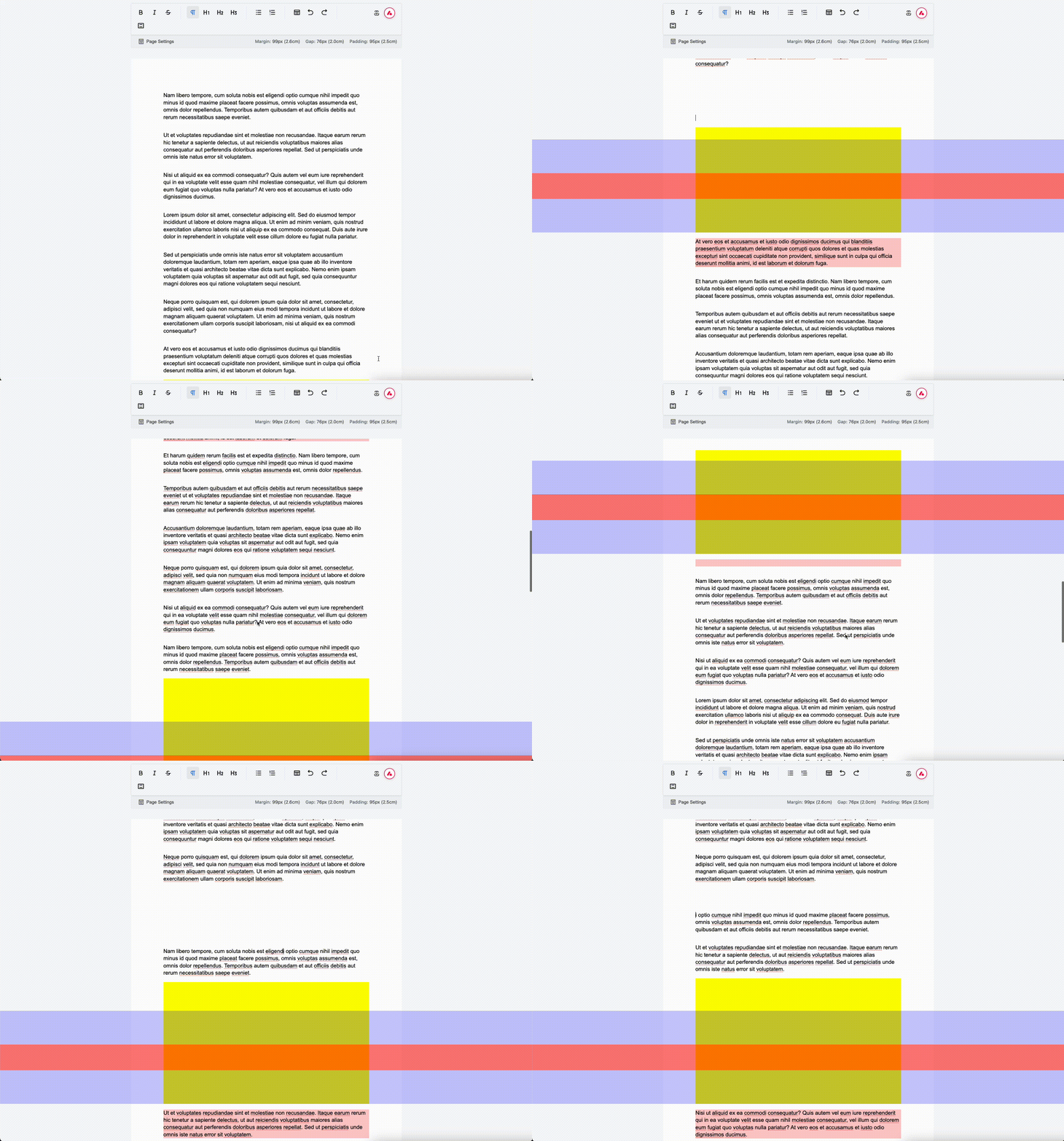
In debug mode, you can see the spacer (yellow) pushing content past the page boundary. The paragraph that would have crossed the page break is now cleanly positioned at the top of the next page.
Node-by-Node Precision
Different node types require different measurement strategies. Paragraphs use offsetTop and offsetHeight. Table rows use getBoundingClientRect() because their position depends on the table's layout, not just their offset within the editor.
if (node.type.name === 'tableRow') {
  const tableRowRect = dom.getBoundingClientRect();
  offsetTop = Math.ceil(tableRowRect.top - pageRect.top + curMargin);
} else {
  offsetTop = Math.ceil(dom.offsetTop + curMargin);
}
Lists present another challenge. We don't want to decorate the list itself; we want to decorate individual list items. So lists are "blacklisted" from direct decoration:
const blacklist = ['orderedList', 'bulletList', 'listItem', 'table'];
The traversal continues into their children, finding the actual content nodes.
The trickiest part is margin collapsing. CSS collapses adjacent margins, but when we inject a spacer, those margins no longer collapse. We track previously-added spacers and subtract their height to avoid double-counting:
const nodeBeforeIsSpacer = nodeBefore?.classList.contains('spacer');
if (nodeBeforeIsSpacer) {
  curMargin -= getComputedStyleValue(nodeBefore, 'height') ?? 0;
}
The Export Engine
With pagination working in the editor, export needs to respect those same boundaries. When the exporter encounters a spacer, it converts it to a DOCX page break.
Unit conversion is critical here. Browsers use pixels (at 96 DPI). Word uses twips (1/20th of a point). Getting this wrong means exported documents look wrong.
export const pxToTwips = (px: number) => px * 15;
export const pxToPt = (px: number) => px / 1.333333;
export const ptToTwips = (pt: number) => pt * 20;
The export pipeline uses a parser chain. Each element type has its own parser:
const parsers = [
  ParagraphParser, // <p> elements
  HeadingParser, // <h1>, <h2>, <h3>
  TableParser, // <table> with colspan/rowspan
  OrderedListParser, // <ol>
  BulletListParser, // <ul>
];
For each DOM element, the exporter finds the matching parser and converts it to a docx object. Simple in principle, complex in practice.
The Hardest Problem: Line Breaking
Browsers and Word break lines differently. Same font, same size, different wrap points. This destroys pagination accuracy.
Our solution is brute-force but effective: measure exactly where the browser breaks lines, then explicitly tell Word to break at those same points.
We create a hidden DOM container that mirrors the editor's styling, then iterate character by character:
for (let i = 0; i < lineText.length; i++) {
  const startHeight = measurementSpan.offsetHeight;
  currentText += lineText[i];
  measurementSpan.textContent = currentText;
  const endHeight = measurementSpan.offsetHeight;

  if (startHeight < endHeight) {
    // Height increased = line wrapped
    const BREAK_CHARS = [' ', '-', '?'];
    let lastBreak = -1;
    for (const char of BREAK_CHARS) {
      const pos = currentText.lastIndexOf(char);
      if (pos > lastBreak) lastBreak = pos;
    }
    breakIndices.push(lineStart + lastBreak);
    // Reset and continue...
  }
}
When the hidden element's height increases, we know a line break occurred. We find the best break character (preferring spaces and hyphens) and record that position.
The text is then reconstructed with explicit segment breaks. Each segment becomes a separate paragraph in the DOCX, ensuring Word breaks lines in the exact same places the browser did.
Get in Touch
If this project interests you or you're working on similar challenges, we'd love to hear from you. Whether you want to contribute to DocEx, need help integrating it into your product, or just want to chat about document editors and the quirks of Word rendering, reach out to us.